Tutorial
BeginnerSee Who You Know: Map Your Association's Hidden Network
Turn your LinkedIn connections into a searchable 3D map that runs entirely in your browser: find warm introductions to sponsors, speakers, and committee recruits without uploading anything anywhere.
Time needed: About 30 minutes
Before you start:
- A LinkedIn account with some connections
- A desktop browser (any recent Chrome, Edge, Firefox, or Safari)
Linkedin Network Mapping Sponsors Board Prospecting Volunteers
By the end of this tutorial you will turn your LinkedIn connections into a searchable map of your professional network that runs entirely in your browser, and you will use it to find warm introductions to sponsors, speakers, and committee recruits. Nothing is uploaded anywhere, and the whole thing is free.
Two routes. Route 1 is the strategy: read the sponsor-intro playbook and the board rollout plan, then hand the rollout email in the starter kit to your board chair. Route 2 is the full build: export your own LinkedIn data, build your constellation, and run the sponsor-intro workflow yourself before the next board meeting.
Try it now: the constellation lab is a working 3D miniature built for this tutorial: a real-time 3D constellation of sixty invented people, a plain-English question box that shows how it read your question, and click-a-person and click-an-employer panels. Drag to rotate, scroll to zoom. Press Use my LinkedIn data in the lab to map your own network instead; the example is there so you can learn the whole workflow before your export arrives.
Your board and staff collectively know thousands of people. When you need an introduction to a target sponsor, a keynote speaker, or a committee recruit, you currently ask around by email and hope someone knows someone. That is the association problem this tutorial solves: it makes the hidden network visible, and then it makes it question-able.
The tool is the constellation lab itself, which we built for this tutorial. Its premise is “see who you know”: your connections arrange themselves as a constellation, clustered by professional field and joined to the employers they share, and you ask plain-English questions like “who do we know at Meridian Logistics?” It runs entirely in your browser: no upload, no account, no backend, no analytics. The only thing that ever leaves the page is your email address, and only if you request the starter kit. Your members’ trust is the asset here, which is why the privacy story gets its own section below.
Seven moves, in order:
- Export your LinkedIn connections.
- Drop the file into the constellation.
- Read the shape of your network.
- Ask your first question.
- Open a person; open an employer.
- Run the sponsor-intro playbook with your board.
- Teach it to your members.
Step 1: export your LinkedIn connections
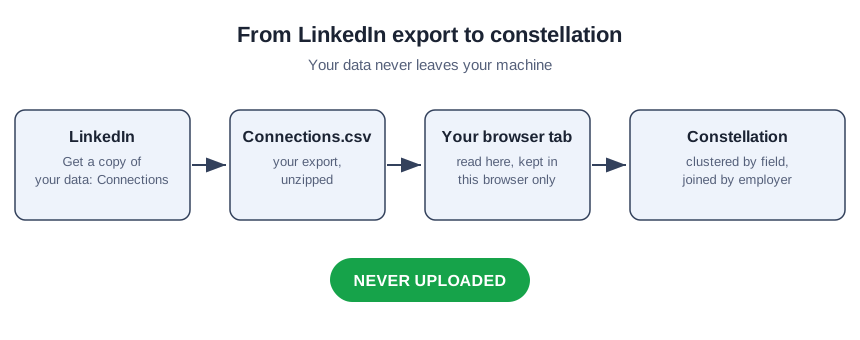
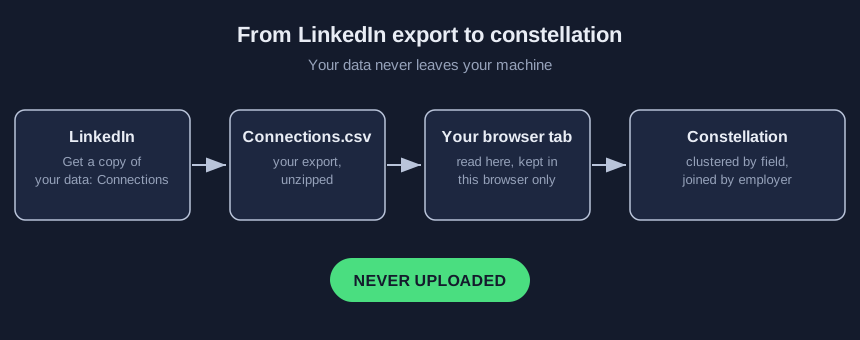
LinkedIn will hand you a copy of your own data. No scraper, no browser extension, no password sharing. This is your data, requested through LinkedIn’s own front door (LinkedIn’s export page describes the process).
- Open Get a copy of your data (on LinkedIn: your profile photo, then Settings and Privacy, then Data privacy, then Get a copy of your data).
- Choose Want something in particular? and tick Connections. Leave the rest unticked; nothing else is used.
- Press Request archive. LinkedIn emails you when it is ready, usually within ten minutes.
- Download the archive and unzip it. The file you want is
Connections.csv. Keep the CSV; you can delete the zip.
While you wait for the email, press Try the example in the constellation lab. It ships with sixty invented people, so you can learn everything below before your own export arrives. None of those people exist.
Step 2: drop the file into the constellation
In the lab, press Use my LinkedIn data and choose your Connections.csv. The file is read in that tab, in that browser’s own memory. It is never uploaded. The lab stays on the example network until your file parses; if the file is wrong (not a LinkedIn export, empty, or unreadable), the lab says so plainly and the example stays up.
The stats line under the controls tells you what the lab made of your data: how many connections mapped, how many employer hubs formed (an employer becomes a hub when two or more of your connections work there), and how many connections stated no field. Large exports are capped at the first 2,000 rows, and the lab says when the cap applied.
Two things to know now, because they shape everything later. First, your graph lives in this browser tab’s memory only. It does not follow you to another device, and the Forget my data button erases everything and returns the lab to the example network. Second, the official export carries no headlines, so the lab composes one as Position at Company, which is what its classifier reads.
Step 3: read the shape of your network
Every connection becomes a node, pulled toward the field their job puts them in and toward any employer they share with someone else. Each field is its own cluster in its own color. The stats line under the controls describes the whole network at a glance: how many connections mapped, how many employer hubs formed, how many connections stated no field.
Click a field chip to isolate it; click it again to bring everyone back. Tick Seniors only to see just the senior roles. Drag to rotate the constellation, scroll to zoom, right-drag to pan. Hover any node for details, click a node for a person, click a large node for an employer.
Now the honest part, which you must internalize before you use this for anything that matters: the lines are memberships, not relationships. A line joins a person to a field or an employer, never two people to each other. LinkedIn does not share who-knows-whom. This is a map of what people have in common, not a social graph. You know these people; the map shows you what they have in common with each other.
Step 4: ask your first question
Type into the question box and press Enter. Try the worked example below, written for a fictional association so you can see the shape of an answer before you run it on your own people.
Worked example. The Riverbend Trade Association wants Meridian Logistics as an event sponsor. The membership director types:
who do we know at Meridian Logistics?
The answer panel shows how many people match, then how the question was read: the field, employer, seniority, and words it matched on. That reading is shown on purpose. If it is wrong, you rephrase using the words people put in their headlines. Then the people, best match first, each with the reason they qualified. In the scene, the matches stay bright while everything else dims.
Sample output, fictional data: 11 people match. How the question was read: field: Logistics and Freight; employer: Meridian Logistics. The three Meridian Logistics people come first: Tom Becker, Freight Operations Manager at Meridian Logistics (reason: works at Meridian Logistics; works in Logistics and Freight), then David Kim, Last-Mile Delivery Lead, and Laura Finch, Government Affairs Manager at Meridian Logistics (same employer). The other eight work in logistics somewhere else; the reading line tells you why they qualified, which is the point of showing it.
Two more questions worth trying on your own network: senior people in insurance and who can intro me to a CEO? A question with nothing specific in it, like who do you know?, gets no answer rather than everyone.
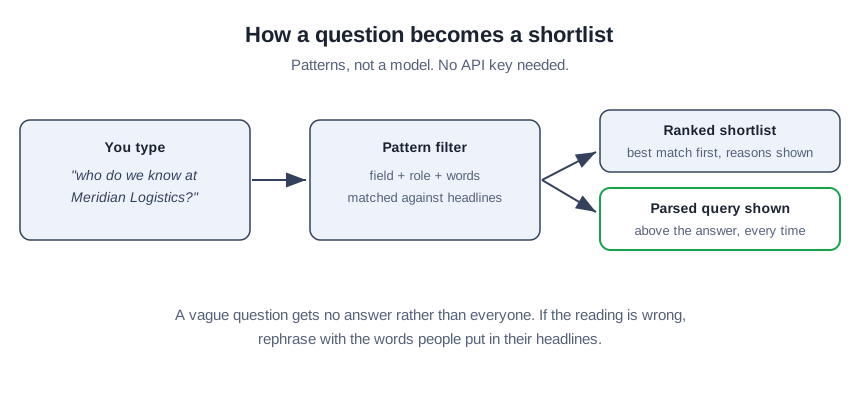
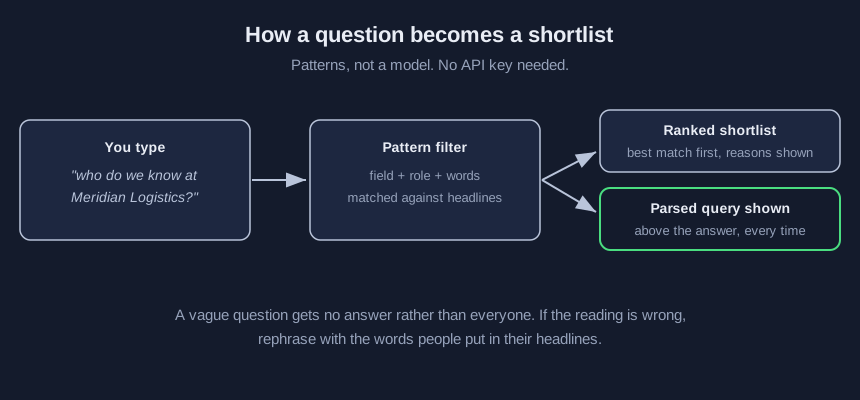
How does this work with no model and no API key? We wrote the classification as two-sided pattern lists: the same keyword patterns that recognize a job title in a headline also recognize the words in your question. That is the whole trick, and it is why the lab works for everyone on first load: there is nothing to configure, nothing to pay for, and nothing that leaves the page. The 3D scene itself is rendered by 3d-force-graph, an open-source MIT-licensed library; everything it shows is our own code.
Step 5: open a person; open an employer
Click any node in the scene to open their panel: their headline as composed from the export, their field and seniority, their employer, and everyone else you know there. Click one of those co-workers to go to them. Click a large employer-hub node in the scene for the employer’s panel: how many of your connections work there, their seniority mix, and who they are.
This is where the sponsor-intro workflow gets concrete. You asked who you know at the target company; now you open the best match and see the three other people you know there, including the senior one. The warm intro path is no longer a vague hope. It is a name.
Step 6: run the sponsor-intro playbook with your board
One person’s network finds one person’s introductions. A board’s network finds the association’s. Here is the consent-respecting way to run it, and the consent part is load-bearing, not decorative.
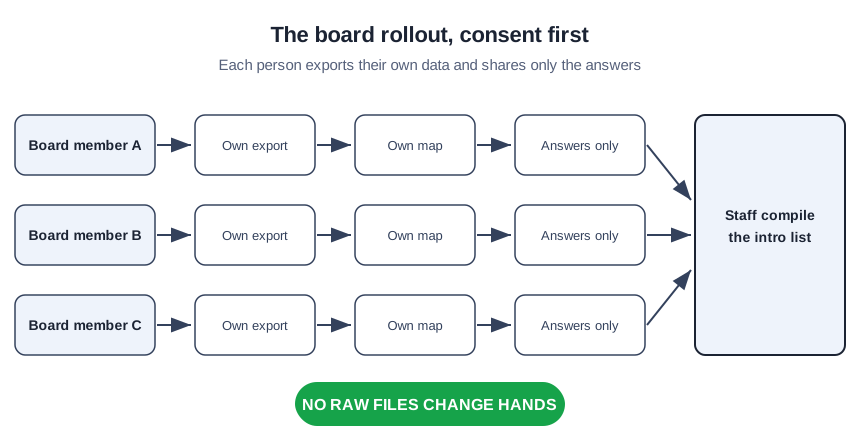
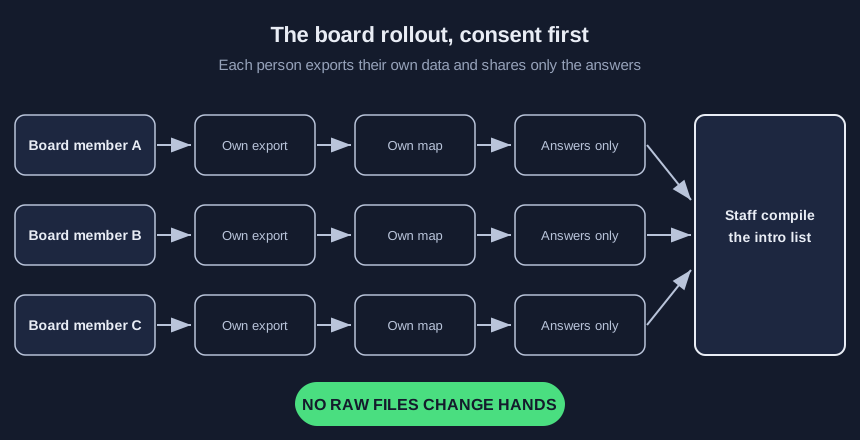
The rule: each person exports their own data, views their own map, and shares only the answers. Nobody emails their Connections.csv to staff. Nobody pools raw exports in a shared drive. Each board member runs steps 1 through 5 on their own machine, then answers a short ask list from staff. The starter kit includes the rollout email template that explains this in plain words.
The ask list (also in the starter kit as fifteen ready-made questions). Send your board three to five questions per quarter, tied to real targets:
- Who do we know at [target sponsor]?
- Who can intro me to the CEO of [target sponsor]?
- Senior people in [target sponsor’s industry]?
- Who do we know in [field of the keynote you want]?
- Who used to work at [target sponsor]?
- Founders working on [topic of the next initiative]?
Each board member replies with names, not files: “I know Tom Becker at Meridian Logistics; happy to intro.” Staff compile the intro list. The board member makes the introduction. That last sentence matters: the map finds the path, but the relationship belongs to the person who holds it. You are asking for an introduction, not contact details.
Why does this beat asking around by email? Because asking around relies on memory, and memory is lossy. Nobody remembers all 800 people they have connected with over fifteen years. The constellation remembers, and the question box searches what memory cannot.
Step 7: teach it to your members
The same skill is a member benefit. Your members have the same problem you do: a network they cannot see. A sixty-minute workshop, “See who you know,” teaches them to export their connections, build the constellation, and ask it three career questions: who do I know in the field I want to move into, who do I know at the companies I am watching, and who among my connections works where my next hire might come from. The starter kit includes the workshop outline. Run it once as a webinar, record it, and it becomes evergreen member value that cost you an hour.
Your network never leaves your browser
This tutorial is the privacy-positive mirror of our facial-authentication entry tutorial. That piece teaches a gate that checks faces; this one teaches a map that never lets your data leave the room. Say that to your board, because it is the reason they will say yes.
What stays local: your CSV, your graph, your questions, your answers. Everything lives in the tab’s memory. Close the tab and it is gone; Forget my data wipes it sooner. What leaves the page: only your email address, only when you request the starter kit, and it goes to us, nobody else.
For the board rollout, put the privacy promise in writing before anyone exports anything: each person’s data stays on their machine, staff receive names and introductions only, and anyone can press Forget my data and walk away. Consent is the workflow, not a paragraph at the end of it.
What the map is honest about
A tool your board trusts must be honest about its edges:
- The lines are memberships, not relationships. Shared field, shared employer. Never person to person.
- The export has no headlines. The lab composes one as Position at Company, and roles are self-descriptions, not verified titles. People write their own headlines.
- The classifier is patterns, not a model. Our keyword lists recognize words, not meaning. They are the same lists the question box uses, which is why the reading is shown above every answer: if it names the wrong field, rephrase with the words from people’s headlines and watch the reading change.
- Connections with no company and no position land in Unstated. The stats line counts them. That is a real category, not missing data to be guessed at.
- Large exports are capped at 2,000 rows in the lab. Big networks still map; they map partially, and the lab says when the cap applied.
- The map is per-person. Each board member sees only their own network. Staff never see anyone’s graph, only the names each person chooses to share.
Check your result
Before you trust the map with a real sponsor target, run three test questions whose answers you already know:
- Ask for a close colleague by field (“people in association management”). They should appear near the top.
- Ask for an employer you know well (“who do we know at [a company where you know three people]?”). All three should appear.
- Read the “how the question was read” line every time. If it names the wrong field, rephrase with the words from people’s headlines and watch the reading change.
If all three behave, the map is working. If the reading is consistently wrong for your industry’s vocabulary, remember the reading is fixed rules reading fixed words: rephrase with the exact words people put in their headlines.
Five ways to make the map lie to you
Pooling raw exports without consent. The moment staff hold everyone’s CSVs, you have built a surveillance file, not a network tool. Answers, not files.
Reading lines as relationships. Two dots near each other share a field or an employer. They may never have met. Do not introduce them to each other as old friends.
Treating employer headquarters as home. The lab has no location data at all. Do not plan a “local” dinner from a constellation.
Asking vague questions. “Who should we talk to?” gets no answer, by design. Name a field, an employer, or a role.
Trusting the field colors blindly. The colors are our pattern lists reading job titles, not a judgment about what someone does. A “Government Affairs Manager” at a logistics company lands in Government Affairs, not Logistics. When it matters, trust the reading line above the answer, not the color.
Get the starter kit
The kit collects everything above into files you can hand out: the sponsor-intro workflow checklist, fifteen ready-made questions to ask your network, the board rollout email template (consent-respecting, plain words), a one-page guide to reading your constellation, and the sixty-minute member workshop outline. It is free; the email gate on the constellation lab page collects your address so we can send you the next tutorial.
Sources
- LinkedIn: Get a copy of your data: the export flow this tutorial follows.