Tutorial
BeginnerCheck a Member Export for Damage From a Spreadsheet Program, Then Fix It at the Source
Choose a re-saved member export in a browser lab, name the ZIP, ID and date columns, and read the cells to compare with the original export. It ends with fixes made in the member database, not in the damaged file.
Time needed: About 30 minutes, plus the time to fix cells at the source
Before you start:
- The original member export, kept exactly as it came out of the member database
- The same export after it was opened and saved again in a spreadsheet program, as a CSV file
- A recent desktop browser
Member Data Csv Data Quality Spreadsheets
A member export that was opened and saved again in a spreadsheet program can come back with ZIP codes missing their leading zero, long member numbers in scientific notation and chapter codes turned into dates. This tutorial ends with a read-only check of that saved file, a list of cells to compare with the original export, and fixes made in the member database. Run it before the duplicate and stale record check.
Try it now: the member export damage check reads a CSV file in your browser and lists the cells to compare. Your file stays in your browser, and nothing is uploaded.
What the studies counted, and what none of them counted
A 2016 article in Genome Biology, by researchers at a Melbourne institute, screened 35,175 supplementary spreadsheet files from 18 journals for gene name errors. A 2021 peer-reviewed article in PLOS Computational Biology, by four Deakin University authors, found gene name errors in 30.9 percent (3,436 of 11,117) of articles with supplementary gene lists. The two share an author and used different journal sets and methods, so we do not read them as a trend. Both counted gene names in science papers, and no source we read measured member lists, so this tutorial gives no percentage for them.
The rules below come from guidance on other data. A Library of Congress format page says CSV has no strong data typing, so a file cannot hold the type a cell was meant to have. A Duke University Libraries guide with no named author says codes written in numerals often lose leading zeros; it covers FIPS and ANSI codes, not ZIP codes. A U.S. Department of Education agency document, author not named, describes long school IDs shown in scientific notation or stripped of leading zeros. Two university authors’ manuscript page, with no peer-review statement, says to keep the primary data file untouched and write-protected.
The ZIP length rule, the expected ID length and the day-number range 36526 to 55153 (2000-01-01 to 2050-12-31 on the 1900 system) are our own settings. The 5-digit rule is for US ZIP codes, and every suggested correction is a guess.
Check one re-saved export in twelve steps
Step 11 needs the kit, which you get by entering an email address in the form at the bottom of the lab page.
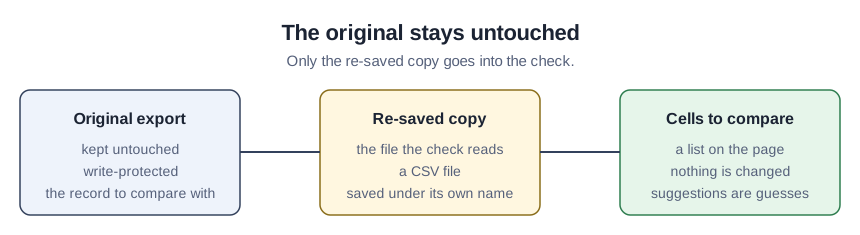
- Keep the original export untouched and write-protected.
- Save the re-saved copy under its own name, apart from the original.
- Type the ZIP column name under “ZIP columns (comma separated)”.
- Type each ID column and its length under “ID columns and expected length (name:length, comma separated)”.
- Type the date column names under “Date columns (comma separated)”.
- Choose the re-saved copy under “CSV file”.
- Read the status line and the column notes.
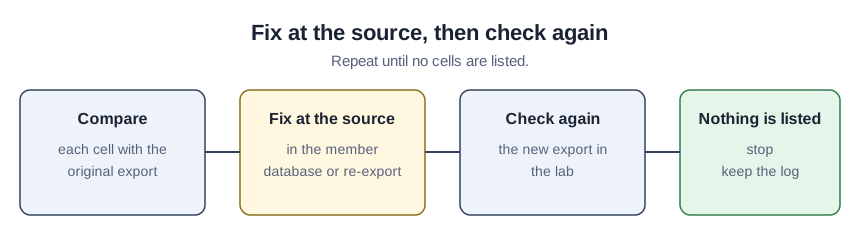
- Compare each row under “Cells to compare with the original export” with the original.
- Correct each confirmed cell in the member database, or re-export from it.
- Press “Download findings.csv”.
- Record each decision in the kit’s comparison log.
- Check the new export the same way until no cells are listed.
Reading the made-up sample file
This is a teaching example, not a case study. Press “Use the made-up sample file” and find these five of the listed cells. In row 2 the ZIP “6511” gets the suggestion 06511. In row 4 the chapter code “2-Jan” gets “1-2 (a guess)”. In row 7 the chapter code “46212” gets “2026-07-09 (1900 date system assumed)”. In row 12 the member ID “1.00000E+11” says to re-export from the source, because the file holds only the rounded form. In row 8 the first name “José” is marked as text read in the wrong character set.
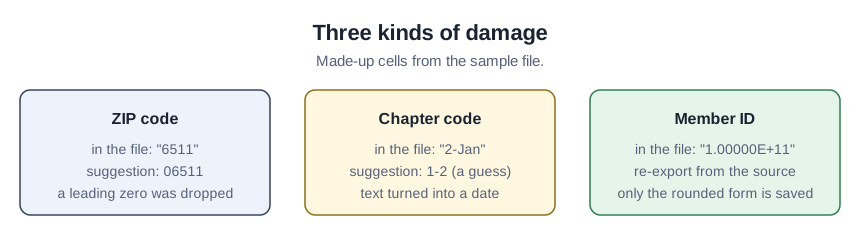
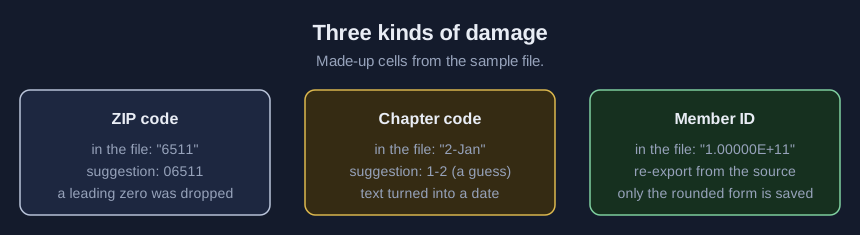
The column note for join_date reports mixed formats and a day-first and month-first conflict, so a slash date such as 10/4/2021 stays a question. Only the original export can say whether 06511 or 1-2 is right.
Confirming the check ran as it should
Choose the kit’s sample-original.csv under “CSV file”. The status line reads “cells to compare: 0” and no table appears. An empty table means the check found nothing it knows how to find, not that the file matches the original export, so compare a few rows by eye.
Three ways to misread the list
The first is treating a guess as the answer: a suggestion such as 06511 is a padded version of what the file holds. The second is repairing the damaged file, when corrections belong in the member database or a new export and the saved copy stays as evidence. The third is assuming another program would not do this. We call no program safe, and the 2016 article reports no way to permanently turn off date conversion in three programs it names.
What the lab reads and what it cannot see
The lab reads one CSV file of up to 5 MB and shows the first 500 cells, while the download holds them all. It cannot see a wrong value that looks valid. It flags a four-digit postal code even where four digits are normal, and a real code such as May-5. We tested it on made-up data in one desktop browser. The kit adds an offline page, a script, the sample files, a settings worksheet and the comparison log.
Sources (6)
- Ziemann, Eren and El-Osta: Gene name errors are widespread in the scientific literature (Genome Biology 17:177, 23 August 2016; PubMed Central copy; authors at a Melbourne research institute and Monash University)
- Abeysooriya, Soria, Kasu and Ziemann: Gene name errors: Lessons not learned (PLOS Computational Biology 17(7): e1008984, 30 July 2021; peer-reviewed; authors at Deakin University)
- Broman and Woo: Data organization in spreadsheets (authors' manuscript page, no peer-review statement; University of Wisconsin-Madison and University of Washington)
- Library of Congress: CSV, Comma Separated Values (RFC 4180), Sustainability of Digital Formats (format description page, last updated 05/09/2024)
- Duke University Libraries: a research guide on cleaning spreadsheet data for GIS use (university library guide, no named author, last updated Sep 23, 2025)
- U.S. Department of Education, Civil Rights Data Collection: a three-page troubleshooting document for school and district IDs changed by a spreadsheet program (agency resource document, author not named; footers as printed: Reviewed 05/26/2026, Revised 08/27/2026)