Tutorial
BeginnerCheck an Event Photo Set, Post the Attendee Notice and Prepare the Page Shell Before Anyone Trains a 3D Scene of the Room
Choose photos in a browser lab, set your own thresholds, read the flags for blur, dark frames, near copies and location tags, then post an attendee notice and audit a page shell. It ends at a checked set, not a trained 3D scene.
Time needed: About 1 hour, plus the time to photograph the room
Before you start:
- A folder of JPEG or PNG photos of one room you have permission to photograph, or use the sample sets
- A recent desktop browser
- Python 3.9 or newer, only for the optional script steps
Photography 3d Scan Venue Privacy Accessibility
A 3D scene built from weak photos fails only after the long step that builds it. This tutorial stops before that step. It ends with a checked photo set, a photo notice for attendees and a page shell for a future 3D view, and it trains no scene. Publishing a trained scan starts where this one stops.
Try it now: the event photo set check checks photos on your own device and flags the ones that deserve a second look. No photo is uploaded, and none is kept.
Where each check and each rule comes from
A one-author technical note on a University of Arkansas web domain, written in 2013 and updated in 2018, advises 60 to 80 percent overlap and each important area in at least three images, and lists changing zoom and handheld shooting as mistakes. It covers photographing objects, not rooms, and gives no photo count. The abstract of a conference paper by Westlake University and Zhejiang University authors reports that neural rendering relies on sharp images and accurate camera poses, and that motion blur is common in low light or long exposures.
One university’s undated photo page, guidance on that university’s own policy and not law, says to give notice, offer opt-outs, post signs at event entrances and mark photo or non-photo zones at larger events when feasible. A Federal Trade Commission policy statement counts a photograph of a face as biometric information, lists unexpected collection among unfairness factors and says it does not bind the public. It does not say whether it reaches nonprofit associations. This is not legal advice, so have counsel read the notice.
A W3C page on keyboard access says everything can be done with a keyboard except freehand movements. A W3C page on moving content asks for a pause mechanism when movement starts automatically, lasts over five seconds and sits beside other content. Neither mentions 3D views, so reading a self-turning view as moving content is our reading.
The lab’s thresholds are our placeholders with no source, and no source we read gives a minimum number of photos.
Check one photo set in fifteen steps
The kit is free with an email address entered in the form at the bottom of the lab page, and steps 2, 13, 14 and 15 use it.
- Get the venue’s written permission to photograph the room.
- Fill in the contact name and email in the kit’s photo notice.
- Post the notice at the entrance.
- Set the camera to one zoom setting and leave it there.
- Photograph the room before sessions start.
- Copy the photos into one folder.
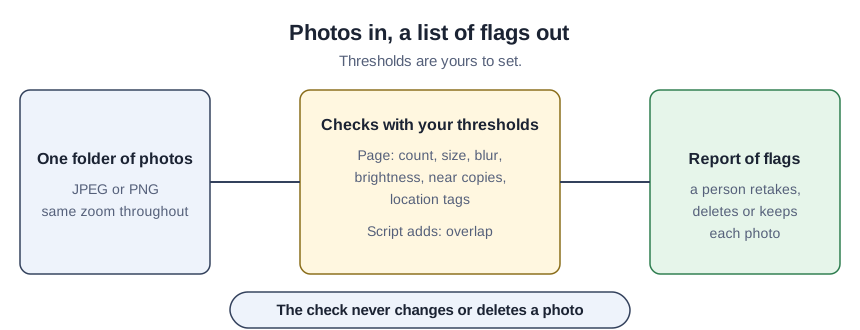
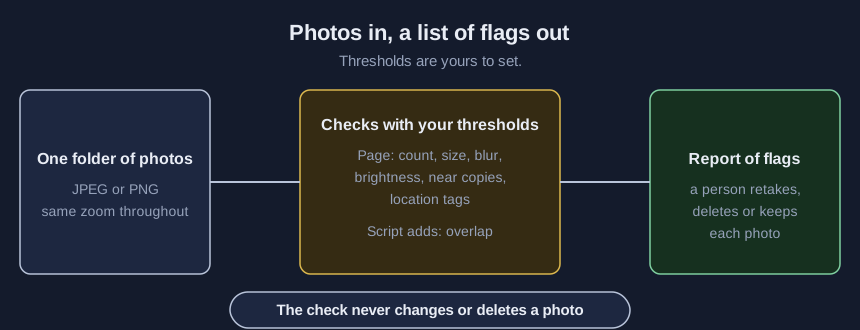
- Choose the photos under “Or your own photos (JPEG or PNG)”.
- Set each number under “Thresholds you choose”.
- Press Run checks.
- Read each row under “Per-photo results” beside its photo.
- Retake or delete each photo whose flag you agree with.
- Press Download report (JSON).
- Run the kit’s script on the folder, following its README, to check overlap.
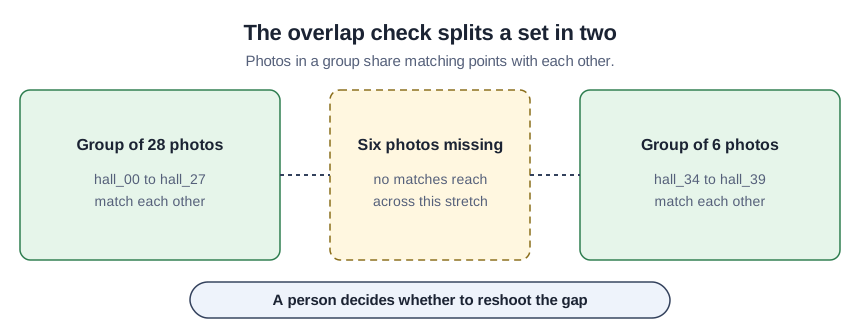
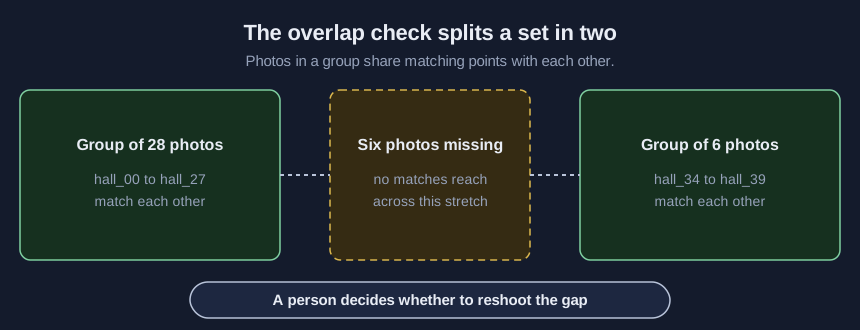
- Run the script again with its copy option to write photos without location tags.
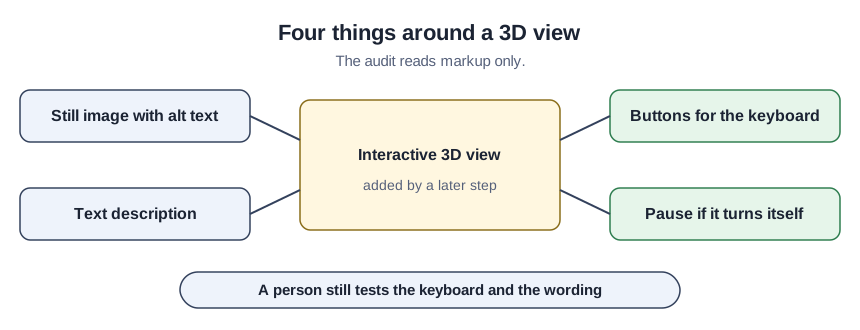
- Run the kit’s page audit on your recap page.
What to do with the 14 flags on the problem sample
With the starting thresholds the “problem” sample, 40 invented photos, gives 14 flags: 6 blur, 2 too dark, 2 near copies, 3 location tags and 1 size. They fall on 12 photos, since the two dark photos also carry a blur flag. Retake the four photos that are only blurry, and retake or delete the two dark ones. Delete the later photo of each near-copy pair and delete the tiny one. Strip the three location tags in step 14. The 34-photo “gap” sample raises no flag in the lab, yet the script splits it into groups of 28 and 6 photos.
Check that the first run behaved
Choose “good” under “Sample set” and confirm 0 flags. Choose “problem”, raise “Minimum photos” to 50 and confirm the total rises to 15. Compare the downloaded report’s photo count with the files in your folder.
Common mistakes when reading the flags
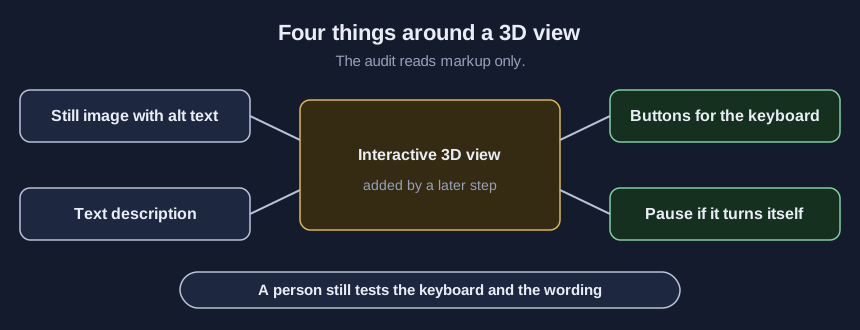
A clean lab result says nothing about overlap, so a missing stretch of the room can pass until the script runs. The blur check compares each photo with the set median, so a set that is uniformly soft raises no blur flag. The overlap check counts matched points and is not the percent of overlap the note advises. The script’s optional face-like check misses turned, small, masked and partly hidden faces, and a clean result does not mean nobody is identifiable. The page audit reads markup only, so a person still tests the keyboard and the wording.
What the page does and what only the script does
The lab checks count, size, blur, brightness, near copies and location tags on JPEG or PNG files, at most 60 photos, 20 MB per photo, 400 MB in total and 24 megapixels per photo. It refuses a HEIC file with a message to export JPEG, and refuses anything over a limit before decoding, naming the file. The script has no such limits. The kit adds sample photos, a capture checklist, the notice template and the page audit. The lab was tested in one desktop browser only.
Sources (6)
- Barnes: Good Photos vs. Bad Photos for Close-range Photogrammetry (CAST Technical Publications Series, number 12144, 2013, last updated 22 March 2018; web note by one author on a University of Arkansas web domain)
- Zhao, Wang and Liu: BAD-Gaussians, Bundle Adjusted Deblur Gaussian Splatting (conference paper on the European Computer Vision Association site, filed under eccv_2024; abstract used only; authors at Westlake University and Zhejiang University)
- University of Minnesota, University Marketing Communications: Photo and Video Releases (university web page, undated; page read October 2026)
- Federal Trade Commission: Policy Statement on Biometric Information and Section 5 of the FTC Act (federal agency policy statement; the PDF prints no date, and May 18, 2023 comes from the agency's library page and the file's properties)
- W3C Web Accessibility Initiative: Understanding Success Criterion 2.1.1, Keyboard (standards body explanatory page, updated 11 May 2026; informative, not required to meet WCAG)
- W3C Web Accessibility Initiative: Understanding Success Criterion 2.2.2, Pause, Stop, Hide (standards body explanatory page, updated 10 August 2026; informative, not required to meet WCAG)