Tutorial
BeginnerTrack Accommodation Requests From the Registration Form to a Confirmed Answer
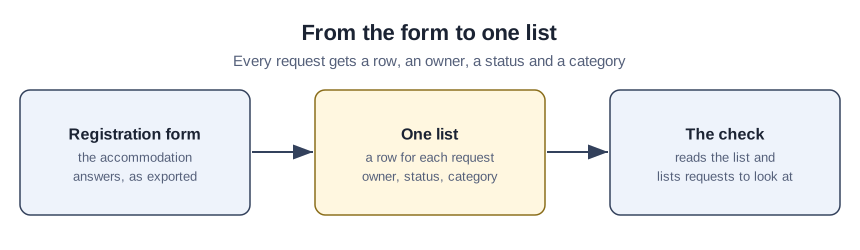
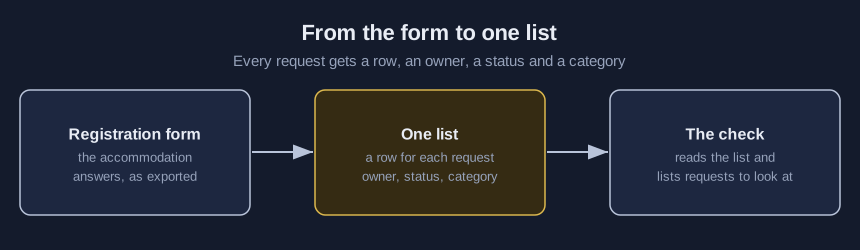
Choose an exported list of accommodation requests in a browser lab, set your own numbers, and read the requests a person should look at, from missing owners to late, unanswered and conflicting requests.
Time needed: About 40 minutes, plus the time to answer each listed request
Before you start:
- The accommodation answers from your event registration form, exported as one CSV file, or use the sample files
- A recent desktop browser
- The name of one person on your team who can own each kind of request
Events Accessibility Registration Csv
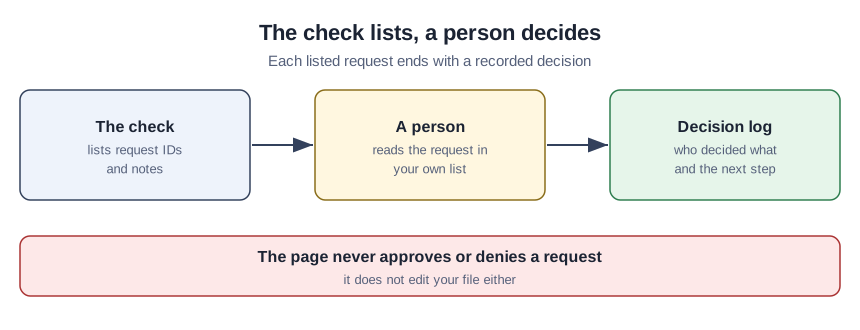
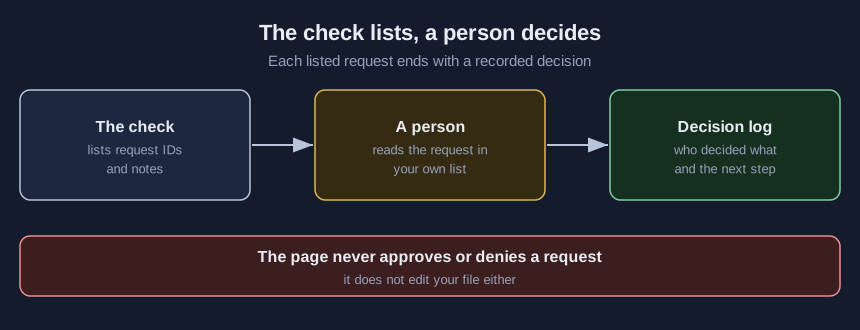
Answers to the accommodation question on a registration form pile up in an export nobody owns. This tutorial ends with a read-only check of that list, which points to the requests a person should look at, and a recorded decision for each. If the export was saved again in a spreadsheet program, run the member export damage check first.
Try it now: the accommodation request tracker check reads a CSV list in your browser and lists requests to look at. It runs in your browser, never prints the text of a request and never uploads your file, so use made-up data until your organization decides who may see real requests.
What five event guides ask for, and what none of them tested
All five sources are guidance for event hosts. None measured whether tracking requests this way helps more people get what they asked for, and none is about an association’s registration form.
A 24-page guide from a University of Maine center and a statewide group run by and for people with intellectual and developmental disabilities, updated November 2020, says to create an organized system for processing requests, to watch for conflicting requests such as an allergy to dogs and a service dog, and to set a registration deadline that leaves time to respond. A University of Washington campus web page says attendees must be given a window to request accommodations. A University of Kansas campus web page says to name one accessibility contact for all requests and to keep an extra three listening devices for requests on the day.
An archived federal page from 2009, which states it has no legal force, says finding an interpreter can take several weeks in some places, so contact the provider as soon as a request arrives, ask which aid the person prefers and plan response deadlines around that lead time. A University of Connecticut campus web page says to respond as quickly as possible.
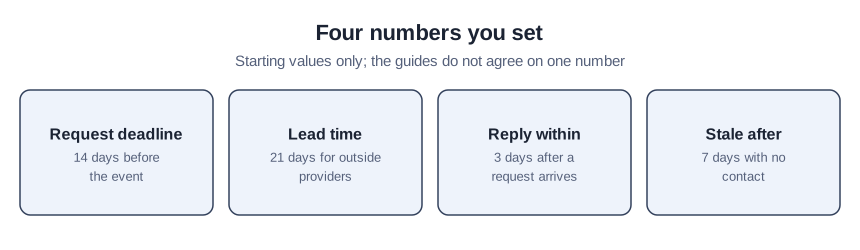
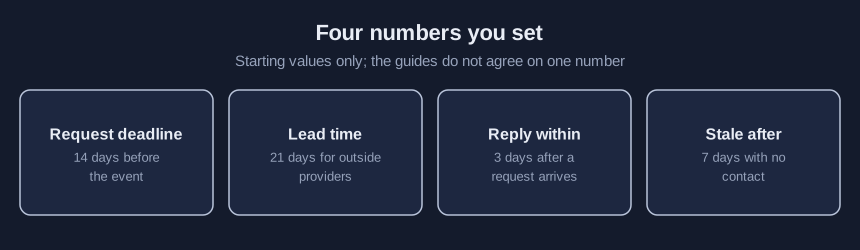
Kansas says a host may ask for as many as 14 days of notice, while Connecticut’s sample statement suggests at least 5 days. That conflict is why there is no single number, and every number in the check is a setting you change. Washington and Kansas send a possible refusal to a campus office, which an association may not have, so the reviewer column is ours and the kit names no role. The checks are ours too, and the tool never approves or denies a request by design.
Check one request list in twelve steps
Steps 2, 5 and 11 use the starter kit, and the email form at the foot of the lab page unlocks the download.
- Export every accommodation answer from the registration form into one CSV file.
- Match the file’s first row to the kit’s requests-blank-template.csv.
- Name one owner for every request in the owner column.
- Set every status to new, in_progress, confirmed or declined.
- Give every request a category from the kit README’s list.
- Replace each starting date and number under “Settings you can change” with your own.
- Choose the file under “CSV file from your computer”.
- Read the status line.
- Compare each row under “Requests to look at” with that request in your own list.
- Select “Download findings.csv” to keep a copy of the notes.
- Write each decision in the kit’s decision-log.csv.
- Check the updated list the same way until every listed request has a recorded decision.
What the made-up list shows
Press “Use the made-up sample file”, leave the settings alone and find these rows of a list made up for teaching. R012 and R021 are conflicts: a service animal request and an allergy request share session S2, and the note says to talk with both people. R030 arrived after the request deadline of 2026-10-29, and its note calls it one for a person to look at, never a reason to refuse. R005 needs an outside provider, is not booked and has an event 11 days away. R008 was declined with no reviewer recorded. Row 0 covers the whole list: listening requests plus spare devices exceed the devices owned.
Confirming the page read your file
Choose the kit’s sample-requests-clean.csv under “CSV file from your computer”. The status line ends with “requests to look at: 0” and no table appears. That shows only that nothing matched these rules, so open a few requests in your own list and read their status.
Where a clean-looking list still misleads
The page lists only what its rules can see, so a request with the wrong category passes unnoticed, and a registrant who repeats a category may have a second need, not a duplicate. Editing the exported file to clear a note hides the question; fix the request in your tracking list and run the check again.
How far the lab goes
The lab takes a single CSV file no larger than 5 MB, with dates written year-month-day and days counted as calendar days. It shows request IDs and notes only. The categories, and the one conflict pair of a service animal with an allergy in the same session, are ours. We ran it on made-up lists in one desktop browser and not on real requests. The kit adds the blank template, a settings worksheet, the decision log and a terminal script.
Sources (5)
- University of Maine Center for Community Inclusion and Disability Studies and Speaking Up for Us of Maine: Planning Accessible Meetings and Conferences, a 24-page guide (guide from a university center and a statewide group run by and for people with intellectual and developmental disabilities, updated November 2020; funded by a federal grant)
- University of Washington: Planning & Promoting Events (university web page for its own campus events, undated; page read October 2026)
- University of Kansas: Best Practice Guidelines for Planning an Accessible Event (university web page for its own campus events, undated; page read October 2026)
- U.S. Department of Justice, Disability Rights Section: Expanding your Market: Accessible Information Exchange Meeting on a Level Playing Field (archived federal page, 2009, states it has no legal force; about meetings between businesses and people with disabilities)
- University of Connecticut: Planning Accessible Events (university web page for its own campus events, undated; page read October 2026)