Tutorial
BeginnerCheck Webinar Start Times in Every Audience Time Zone Before the Invitations Go Out
Choose a CSV schedule of webinar sessions in a browser lab, set your own audience zones and limits, and read the clock times, labels and shifts worth comparing with each invitation, including weeks when clock changes fall on different dates.
Time needed: About 35 minutes, plus the time to compare each listed item with its invitation
Before you start:
- Your webinar schedule exported as one CSV file, or use the sample files
- A recent desktop browser
- The invitation text for each session, to compare with the listed items
Events Webinars Time Zones Csv
A webinar invitation carries one clock time, and members read it in other zones. This tutorial ends with a read-only check that points to times worth comparing with each invitation. For reminder dates built from a member list and written rules, which work on whole dates and not clock times, see the renewal reminder schedule tutorial.
Try it now: the webinar clock time check reads a CSV schedule in your browser and lists times to compare with the invitations. It reads the file in your browser and never uploads it. Until your organization decides who may see real sessions, use made-up data.
What the clock rules say, and what nobody tested
None of these four sources is about an association, a webinar or an invitation, and none measures whether a check like this helps.
A U.S. federal agency page, updated February 9, 2026, says 2026 daylight saving runs from March 8 at 2 a.m. to November 1 at 2 a.m. in the United States. It starts on the second Sunday of March, when the clock skips from 2 a.m. to 3 a.m., and ends on the first Sunday of November, when 2 a.m. becomes 1 a.m. and the hour repeats. The same page says Arizona does not observe it, “with the exception of the Navajo Indian Reservation, which does observe DST”.
A UK government page, last updated 24 November 2025, says UK clocks go back 1 hour at 2am on the last Sunday in October, 25 October in 2026, and forward at 1am on 28 March 2027. An EU directive, which a saved browser copy read on 4 October 2026 showed as “In force”, ends summer time in member states at 1.00 a.m. Greenwich Mean Time on the last Sunday in October and excludes overseas territories.
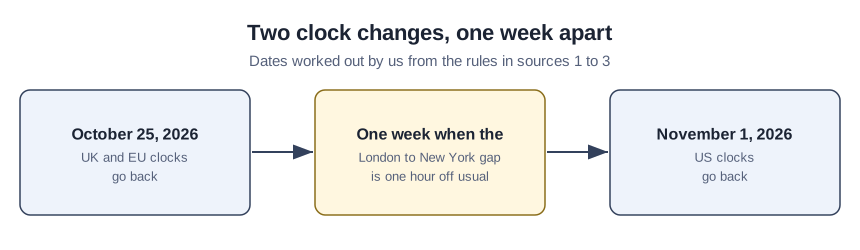
Worked out by us from the rules in sources 1 to 3: in autumn 2026 UK and EU clocks go back on October 25 and U.S. clocks on November 1, and in spring 2027 U.S. clocks go forward on March 14, two weeks before the UK and EU on March 28.
A 13-page study of 151 bugs in open-source Python software found 53.6 percent time zone related and 7.9 percent daylight saving related, as shares of bugs in the sampled software projects, not rates of wrong invitations. Its scope is the Python language, and it says results may not generalize to other languages.
Check a webinar schedule in fourteen steps
Steps 2 and 13 come from the starter kit, delivered by the email form on the lab page.
- Export the session list from your scheduling tool into one CSV file.
- Copy the header row of the kit’s sessions-blank-template.csv into your file.
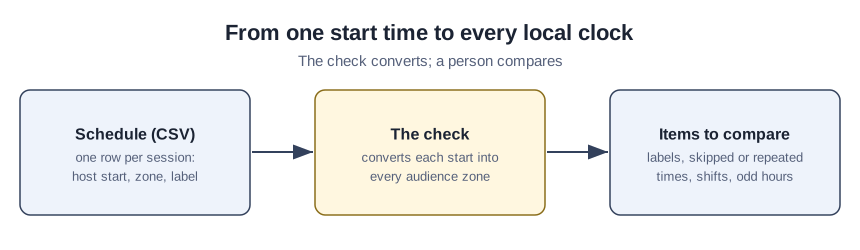
- Write each date as year-month-day and each start as 24-hour HH:MM.
- Write each host zone as a place name such as America/New_York.
- Copy the zone label from each invitation into the label column.
- Replace the zones under “Audience time zones (comma separated)” with your own.
- Replace the names under “Labels to flag (comma separated)” with your own list.
- Type your window under “Earliest local start (HH:MM)” and “Latest local start (HH:MM)”.
- Select your schedule with “CSV file from your computer”.
- Check that the number of rows the status line says it read matches the number of rows in your schedule.
- Compare each row under “Items to compare” with that session’s invitation.
- Select “Download findings.csv” and file it with the schedule.
- Write each fix in the kit’s change-log.csv.
- Run the corrected schedule through the same check.
Three rows to find in the sample file
Press “Use the made-up sample file” with the settings untouched, then look for three rows. Row 5 is a monthly call on 2026-10-29 at 11:00 in America/New_York. Berlin shows 16:00 where the usual time is 17:00, and London shows 15:00 where the usual time is 16:00, because UK and EU clocks went back on October 25 and U.S. clocks had not. Row 15 starts at 01:30 on 2026-11-01 in New York, a time that happens twice. Row 9 carries the label CST on 2026-10-19, a label on the flag list, and the offset that day is -05:00.
Running the clean schedule through the page
Load the kit’s sessions-clean.csv through “CSV file from your computer”. Its status line finishes with “items to compare: 0” and the table stays hidden. That shows only that none of these rules matched, so open two invitations and read the times anyway.
Mistakes a short list hides
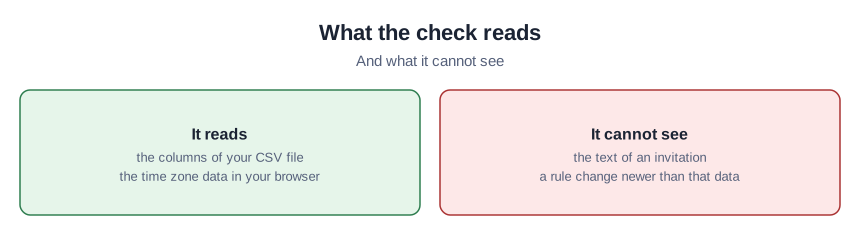
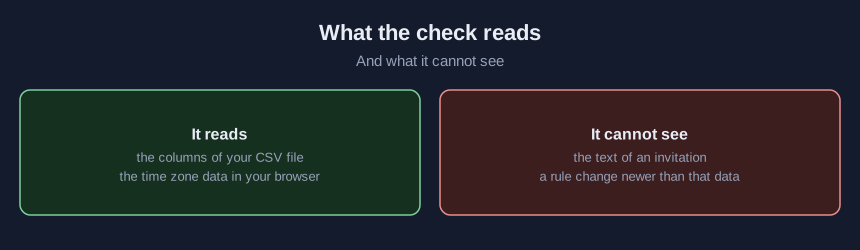
A time typed only into the invitation text goes unseen, because the page reads columns and nothing else. Label ET passes on every date because the check holds no offset for it, and a reader in another zone may take it differently. Phoenix keeps its clock all year, so its sample rows shift after November 1 only because the host zone’s clocks go back; that is a prompt to compare, not a fault. Fix the schedule and the invitation, never the exported file, then run the check again.
What this lab leaves out
The lab takes one CSV file up to 2 MB. The zones, the flag list, the odd-hours window and the usual-time rule are ours or yours, never standards. It uses the time zone data in the browser, so it cannot know a rule change published after that data was built. We ran it on made-up schedules in a desktop browser, not on real ones.
Sources (4)
- U.S. National Institute of Standards and Technology: Daylight Saving Time Rules (federal agency web page about United States rules, updated February 9, 2026; page read October 2026)
- GOV.UK: When do the clocks change? (UK government web page about the United Kingdom, last updated 24 November 2025; page read October 2026)
- Directive 2000/84/EC of the European Parliament and of the Council on summer-time arrangements (European Union legal text about member states, shown as In force on a saved browser copy read 4 October 2026)
- Tiwari, Chen, Joukov, Vandervelde, Li and Padhye: It's About Time: An Empirical Study of Date and Time Bugs in Open-Source Python Software (13-page study by authors at Carnegie Mellon, UC San Diego, Stony Brook and UC Santa Barbara, covering 151 bugs in sampled software projects; university copy)