Tutorial
BeginnerCheck Webinar Captions and Page Alt Text Against Your Own Limits Before You Publish
Open a webinar caption file and a page's HTML in a browser lab, set your own limits, work through the flags for timing, line count, reading speed and image descriptions, then have a person read what the checker cannot.
Time needed: About 45 minutes
Before you start:
- A caption file exported as WebVTT and the HTML of one page, or use the sample files
- A recent desktop browser, plus access to your video platform and page editor to fix what is flagged
- A second person to play the recording while reading the captions
Accessibility Captions Alt Text Webinars
By the end of this tutorial you will have a flag list for one webinar caption file and one web page, with each flag fixed or accepted by a named person before the recording goes up.
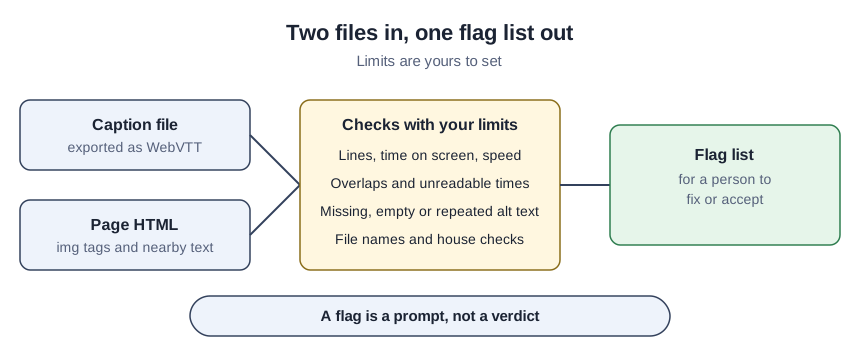
Try it now: the caption and alt-text check reads a caption file and a page’s HTML in your browser and flags what falls outside limits you set. Nothing you open leaves the tab.
Where the starting limits come from, and what they skip
A CDC National Center for Health Statistics page, last reviewed September 1, 2026, reports that 16.0 percent of U.S. adults aged 18 and older had any difficulty hearing in 2025. It describes all U.S. adults, not your members, so it shows how common the difficulty is and not who attends your webinars.
The W3C’s explanation of the captions criterion, standards body guidance updated 10 August 2026, says captions carry dialogue, who is speaking and meaningful sound effects. The numbers come from the Described and Captioned Media Program’s style guide for educational media, whose pages on reading rate and caption text were read in October 2026. They prefer at most two lines, 40 frames (1 second and 10 frames) to 6 seconds on screen, and at most 160 words per minute for upper-level media. The Captioning Key gives that minimum in frames, not seconds, so we assume 30 frames per second, which makes 40 frames about 1.33 seconds. They were written for students’ educational media, not member webinars, so we treat them as starting points.
For images, Section508.gov’s alt text guidance, updated May 2025, says to keep alt text short, say what the image conveys, avoid repeating nearby text and give logos alt text, and warns that a screen reader may read a file name. The W3C’s page on non-text content, updated 6 September 2026, lists empty alt text as the technique for images that assistive technology should ignore. The 150-character flag and the “image of” check are our own house checks with no source.
Check one recording and one page in fifteen steps
- Export the caption file as WebVTT. Use the export option in your video platform.
- Copy the page HTML. Take it from your page editor’s HTML view.
- Write down five limits. They are the most lines per caption, the shortest and longest time on screen, the most words per minute and the alt text length that earns a flag.
- Open the caption file in the lab. Try the sample files first if the layout is new to you.
- Open the page HTML in the lab.
- Enter your five limits under “Limits you choose”.
- Run the check on both files. Press the Check button; counts, caption flags, prompts and image flags appear in sections under it.
- Find the start time of the first caption flag. The flag gives a cue number, and the line of times just above that cue’s words in the caption file holds its start.
- Open the recording at that time.
- Fix each caption flag in your video platform.
- Read each image flag beside its image.
- Fix each image flag in your page editor. If an image is decoration, mark it as decoration there.
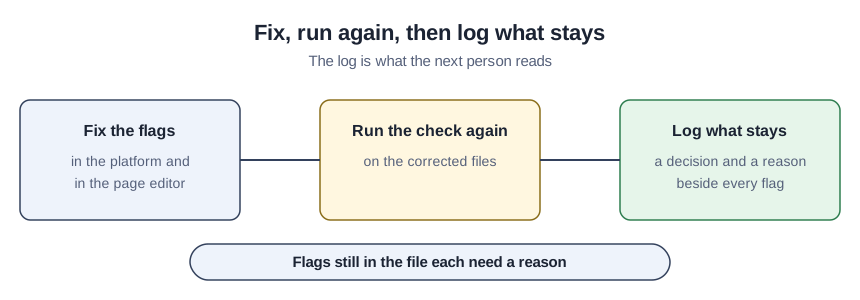
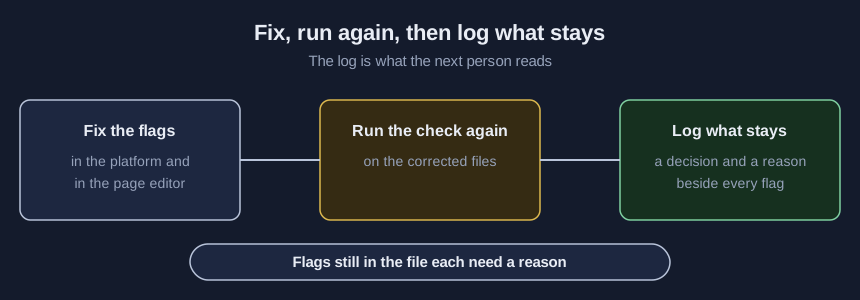
- Run the check again on the corrected files.
- Download review-flags.csv.
- Fill in the decision and reason columns for every flag you keep.
A teaching example: one invented webinar
The sample files are made up for this tutorial, so the counts below show what the checks do and not what your files will hold.
The six-cue caption file averages 232 words per minute across the whole file, and the limit is applied cue by cue. It gets eight flags. Cue 2 is on screen 0.70 seconds, under 1.33, at 257 words per minute. Cue 3 runs at 186 and starts before cue 2 ends. Cue 4 packs 17 words into 2 seconds, 510 per minute. Cue 5 has four lines and runs at 200. Cue 6 ends before it starts.
Of seven image tags, six are flagged: a file name used as alt text, “Image of a speaker on a stage”, no alt attribute, an empty alt not marked decorative, a logo described only as “Logo”, and an alt that repeats the line above it. The description of the award winner, with a name, event and year, is not flagged.
Confirm nothing was left to the checker
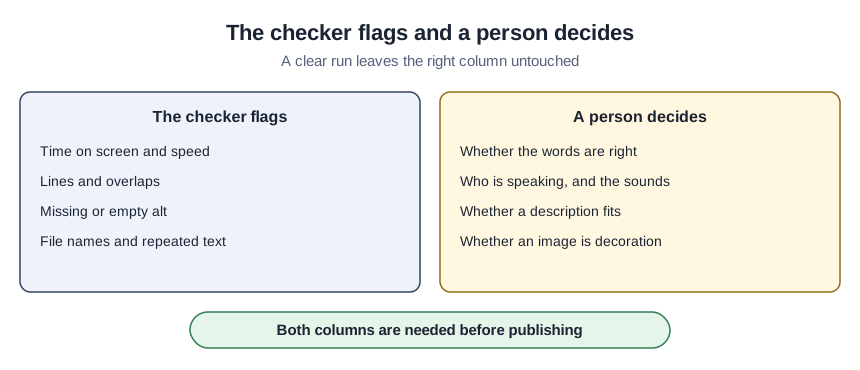
A clear second run is not proof. Ask a second person to play the recording while reading the captions, and ask the person who knows each image to read its description beside it. The checker cannot see a wrong word, a misnamed speaker or a description that misses the point, which is why our article on who checks AI captions and image descriptions puts a named person at that step. Every flag still in the file needs a reason.
Where the checker gives false comfort
- A clean run read as accurate captions. Wrong words pass every check here.
- The 160 or the 150 treated as a rule. One comes from a style guide for educational media and the other is ours.
- An empty alt accepted unseen. It is right only for decoration, and only a person can say so.
- Fixes made in the exported file only. The next export from the platform brings the old problems back.
- Images the page adds with scripts or backgrounds. The check reads img tags in the HTML you give it and sees nothing else.
What the download holds
Every check runs in the lab in your browser. The kit’s script runs the same checks and is the only place that reads several files in one run. Besides the lab page and that script, the kit has the two sample files, a settings worksheet, a review checklist and a log for accepted flags, free with your email on the demo page.
Sources (6)
- Described and Captioned Media Program: Captioning Key, Presentation Rate (style guide page for educational media, undated, page read October 2026)
- Described and Captioned Media Program: Captioning Key, Text (style guide page for educational media, undated, page read October 2026)
- W3C Web Accessibility Initiative: Understanding Success Criterion 1.2.2, Captions (Prerecorded) (standards body guidance, updated 10 August 2026)
- Section508.gov, U.S. General Services Administration: Authoring Meaningful Alternative Text (government guidance, reviewed and updated May 2025)
- W3C Web Accessibility Initiative: Understanding Success Criterion 1.1.1, Non-text Content (standards body guidance, updated 6 September 2026)
- CDC National Center for Health Statistics: FastStats, Disabilities or Limitations (government statistics page, last reviewed September 1, 2026)