Tutorial
AdvancedBuild the Data Agent Your Dashboard Chats With
Build a BigQuery data agent click by click: enable the APIs, grant the roles, add your tables, teach it with verified queries, and publish it to chat.
Time needed: About 60 minutes, plus writing your table descriptions
Before you start:
- A Google Cloud project with billing enabled (the sandbox cannot build agents)
- The platform from Own Your Association's Data Platform
- One person who knows what your tables mean
Bigquery Data Agent Looker Studio Analytics
By the end of this tutorial your staff will ask questions in plain English and get answers from your BigQuery tables: no SQL, no waiting on the one person who knows the queries. This is branch one of Own Your Association’s Data Platform; if you have not created the project yet, start there.
Try it first: our data agent chat demo answers five questions on demo data, right in your browser. Then build your own below; the agent-build worksheet is free with your email.
Before you click anything
Two things. First, the honest prerequisite: data agents require billing enabled on your Google Cloud project, so this tutorial cannot be completed inside the BigQuery sandbox. Enable billing first; everything below assumes it.
Second, what you are building. A data agent is table metadata plus use-case query instructions over knowledge sources (tables, views, UDFs) that teach Gemini Data Analytics how to answer questions about your data, per Google’s data agent documentation. The agent never copies your data anywhere; it answers against your tables, in your project.
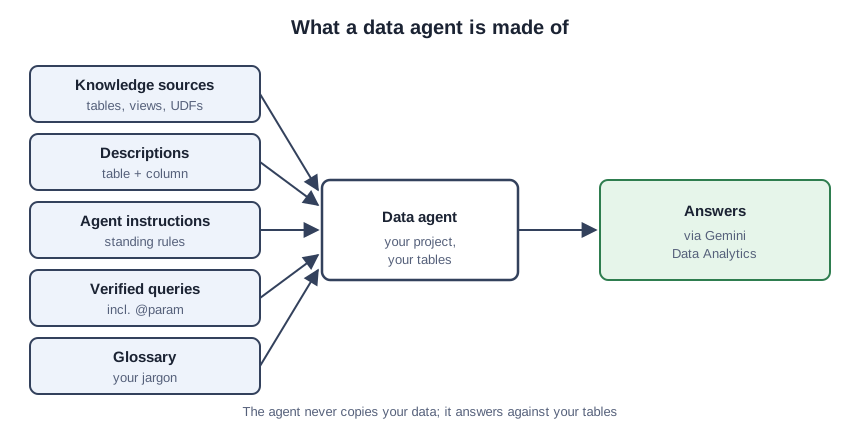
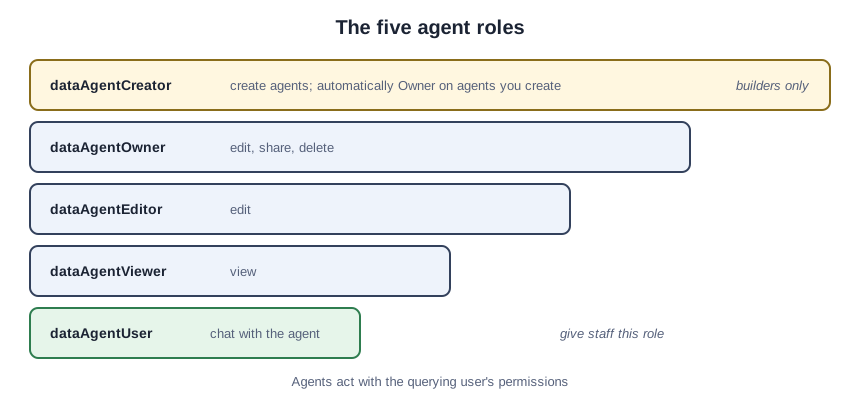
Enable four APIs: BigQuery, Gemini Data Analytics, Gemini for Google Cloud, and Knowledge Catalog (BigQuery Studio, then Enable APIs; dependencies switch on automatically). Then grant the IAM roles. There are five: dataAgentCreator (create agents; automatically Owner on agents you create), dataAgentOwner (edit, share, delete), dataAgentEditor (edit), dataAgentViewer (view), and dataAgentUser (chat with the agent). Give your builder Creator and question-askers User: agents act with the querying user’s permissions, so each person only ever sees what their IAM allows.
The build checklist
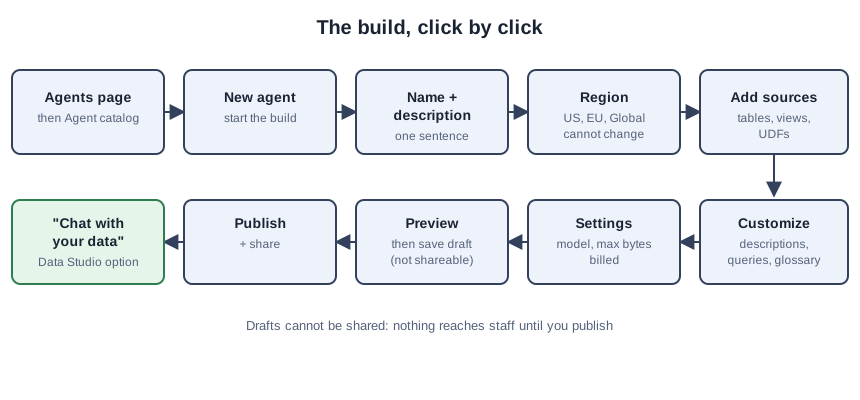
- Open BigQuery, go to the Agents page, then the Agent catalog, and choose New agent.
- Name the agent and write a one-sentence description of what it knows.
- Choose the region (US, EU, or Global); it cannot change after the agent is saved.
- Add sources: your tables, views, and UDFs as knowledge sources.
- Write table and column descriptions for every source.
- Write the agent instructions: the standing rules for answering questions about your data.
- Add verified queries, including at least one parameterized query with
@param. - Add glossary terms for your association’s jargon.
- Open Settings: choose the model and set max bytes billed (minimum 10485760).
- Preview, fix what breaks, save the draft, then publish and share.
Filling in the checklist
Steps 1 through 4 are clicking; steps 5 through 8 are writing, and the writing is the work. The agent cannot read your mind about column names. member_status_cd means nothing; “membership status: A active, L lapsed, D deceased” means everything. Describe every table and column a question might touch; this is the highest-value work here.
Agent instructions are the standing rules your best analyst follows without thinking: “Always filter to the current fiscal year unless asked otherwise.” “Renewal rate means renewed members divided by members up for renewal.” “Never show individual member rows, only aggregates.” Write them as rules, not essays.
Verified queries are question-and-SQL pairs the agent learns from. Add the five questions your ED asks every quarter, each with its correct query. Include at least one parameterized query with @param, so the agent learns the pattern “show me X for chapter Y” instead of memorizing one chapter’s answer.
The glossary holds your jargon: “chapter” means a regional unit; “lapsed” means not renewed within 90 days of expiry; “FY26” runs July to June. Every term a new staffer would have to ask about belongs here.
In Settings, choose the model, then set max bytes billed: the ceiling on query data scanned per interaction. The minimum is 10485760 bytes (10 MiB). Start low; raise it when real questions need wider scans.
An invented walkthrough, not a client story. Picture a 1,800-member trade association with three tables loaded: members, chapters, events. The builder writes plain-English descriptions for the cryptic columns, attaches verified queries for “renewal rate by chapter” and “event attendance trend” (with @param for the chapter name), and keeps max bytes billed low. The executive director’s first Preview question: “Which chapters grew fastest this year?” The answer arrives with its SQL shown.
Check it in Preview before you publish
Open Preview and ask the five questions your ED asks every quarter. For each, check the answer is right, the SQL is sane, and the standing rules held. Fix descriptions and instructions until all five pass, then save the draft. Drafts cannot be shared: nothing reaches staff until you publish.
On publish, share with principals or by copy-link and email, and select Data Studio as a publishing option; shared users then see the agent on the “Chat with your data” page, per the same documentation. Your staff now chats with the warehouse from inside the dashboard.
Where agents go wrong
Skipping the descriptions. The agent guesses at cryptic columns, and guesses arrive stated with confidence.
Publishing before Preview passes. Five questions, three checks each, then publish.
Giving everyone Creator. Staff need only the User role to chat; Creator lets people edit and delete the agent itself.
Picking the wrong region. The choice is permanent once the agent is saved; match it to the data.
A wrong verified query. The agent learns the pattern you give it, including your mistakes. Run each query’s SQL by hand before attaching it.
The agent is built. Your staff asks, the warehouse answers, and the data never left your project. The payoff continues in Chat With Your Website Data, where the same chat page meets your GA4 export.