Tutorial
Check Member Data Before You Paste It Into an AI Tool
A step-by-step flowchart for association staff: decide which roster fields, email details, and records can go into an AI tool, and which get deleted or swapped for placeholders first.
Time needed: About 20 minutes the first time, a few minutes after that
Before you start:
- The name of the AI tool you plan to use and whether your association has approved it
- Your association's AI policy or data rules, if it has them
- The file or text you want help with, open but not yet pasted
Privacy Member Data Membership AI Policy Association staff
By the end of this tutorial you will be able to take any piece of member data, from a full renewal roster to one sentence in an email, and decide whether it can go into an AI tool, what has to come out first, and what goes in its place. Set aside about twenty minutes the first time, and have your association’s AI or data rules open if they exist.
Your association may not have a written AI policy to check yet. In a November 2024 FSAE and Association Societies Alliance survey, just 13% of the 305 respondents said their association had an AI policy. The public cares about this too. In Independent Sector’s July 2026 survey of 3,000 US adults, 72% agreed that protecting client data privacy is more important than maximizing AI efficiency, and 76% agreed that nonprofits should clearly disclose when and how they use AI.
The flowchart
Every step below matches a numbered box in this diagram.
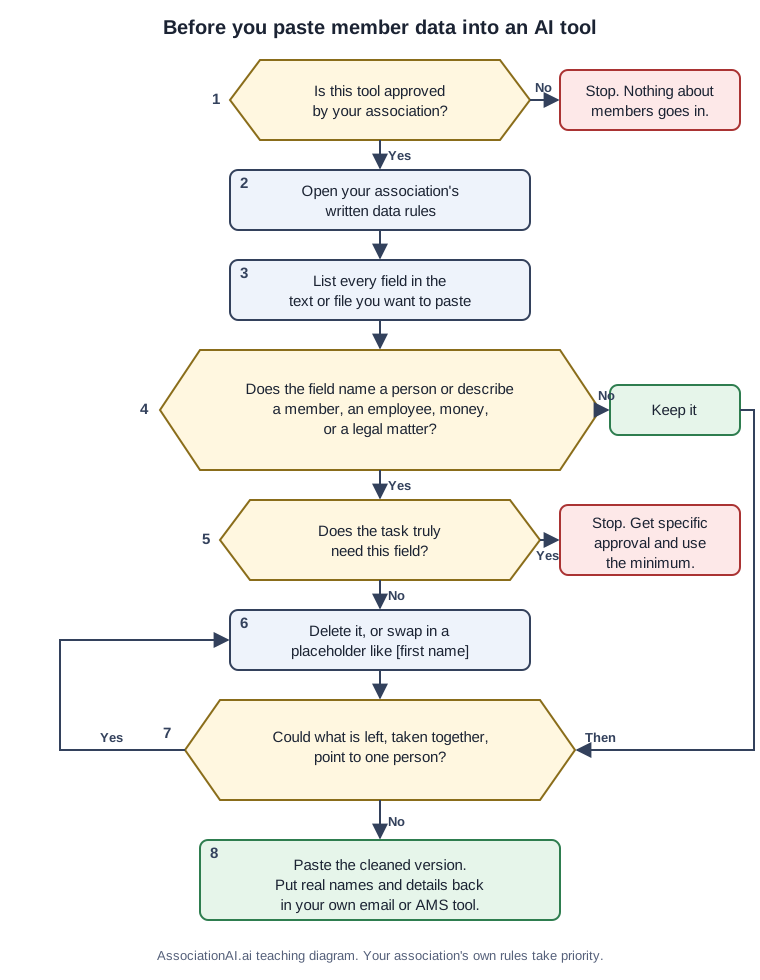
The eight steps
Stage 1: check the tool and the rules
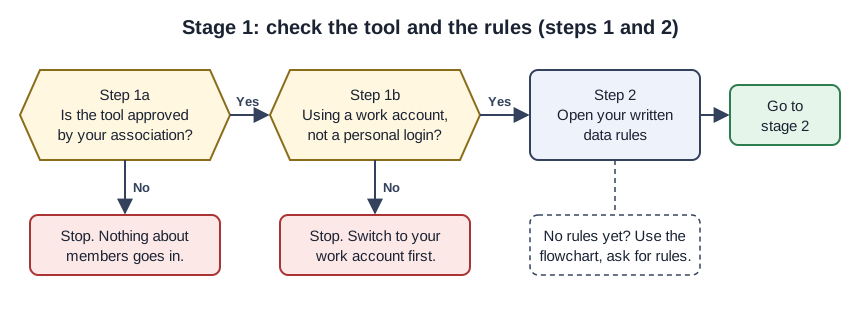
- Confirm the tool is approved. ASAE’s AI policy tells staff to use only AI tools that have been reviewed and approved, and the same policy’s list of prohibited uses includes personal AI accounts for association work. If the tool is a free app on your own phone or a personal login, stop here: nothing about members goes in.
- Open your written data rules. Independent Sector’s guidance on nonprofit AI advises nonprofits to start slowly and to have clear data policies in place. If there are none yet, use this flowchart and ask whoever owns policy for some.
Stage 2: find what needs a flag
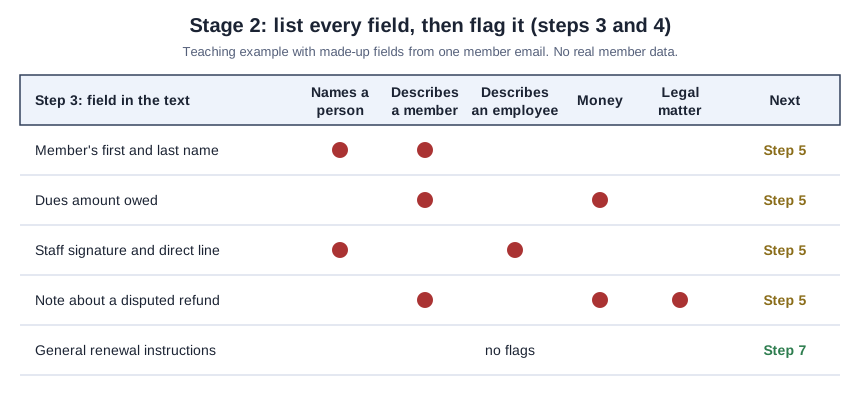
- List every field. Write down each column in the spreadsheet or each kind of detail in the text, including signatures, quoted replies, and file names.
- Flag anything that names a person or describes a member, an employee, money, or a legal matter. ASAE’s AI policy prohibits entering member, employee, financial, or legally privileged information into an unapproved tool, and its member data principle says AI use must avoid personal data. Anything flagged moves to step 5, and anything unflagged goes straight to step 7.
Stage 3: remove, then check what is left
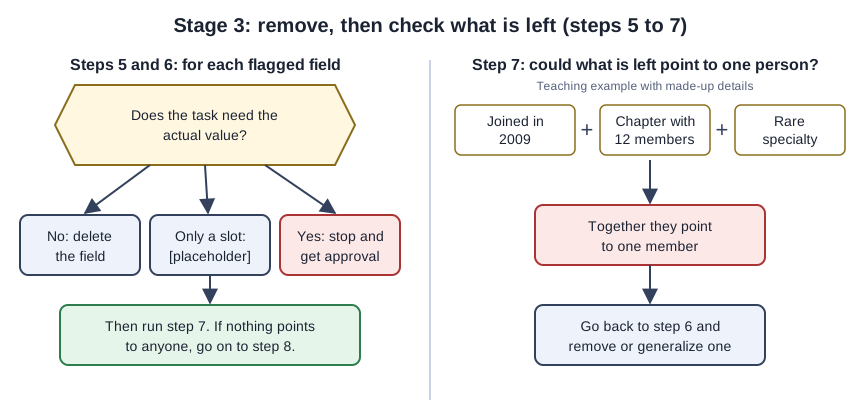
- Ask whether the task truly needs the value itself. A reminder draft needs a spot for a first name, not the first name. If the task really does need personal data, ASAE’s member data principle says that use must be specifically approved, limited to the minimum, access-controlled, and never used to train models, so stop and get that approval before going further.
- Delete the field or swap in a placeholder. NIST’s Generative AI Profile defines the data privacy risk as leakage and unauthorized use, disclosure, or de-anonymization of personal or sensitive data, and a field you never paste cannot leak from the tool. Placeholders in square brackets, such as [first name] or [renewal date], keep the draft usable.
- Check whether what is left could point to one person. NIST’s Generative AI Profile warns that models may leak, generate, or correctly infer sensitive information about individuals, including by piecing together details from separate sources. A join year, a small chapter, and a specialty can add up to one member even with the name gone, so if the answer is yes, go back to step 6.
Stage 4: paste and restore
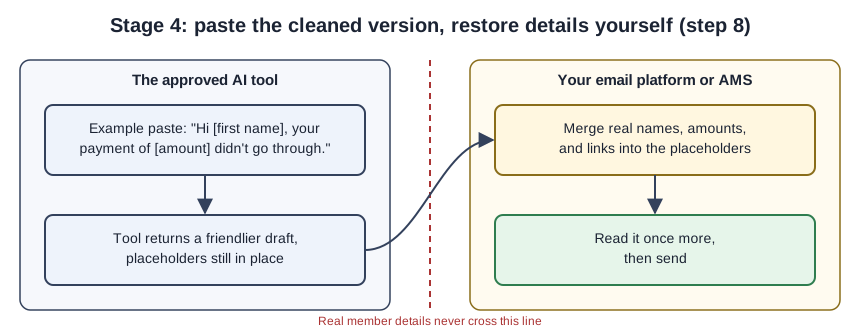
- Paste the cleaned version, then put real details back in your own system. Merge names, amounts, and links in your email platform or AMS.
Worked example 1: a renewal roster
Each example below is a made-up teaching case, not something a real association did.
A membership coordinator wants help drafting reminder emails from this month’s renewal export, whose columns are first name, last name, email, member number, dues balance, join date, renewal date, renewal link, donor note, and certification status.
The tool is approved and the rules are open, so steps 1 and 2 pass. Step 4 flags all ten columns, because each describes a member or money, which makes step 5 the real decision. The draft needs slots for a first name, a renewal date, and a renewal link, and none of the actual values.
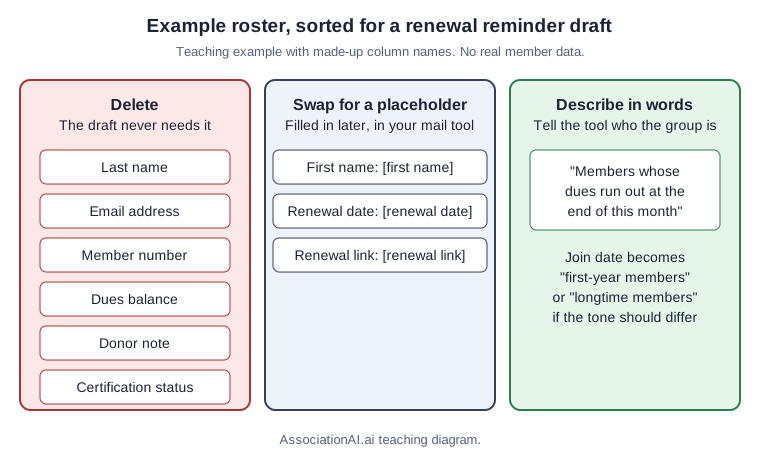
Step 7 finds nothing that could identify anyone, because the roster never goes in. The coordinator pastes this instead:
Example prompt: “Write a renewal reminder for members whose dues run out at the end of this month. Use [first name], [renewal date], and [renewal link] as placeholders. Keep it warm, under 120 words, with one clear ask. Write a second version for first-year members.”
Worked example 2: a renewal email you already wrote
A staff member has written a reply to one member and wants the tone softened. The draft greets the member by name, mentions the exact dues amount, says the last card payment failed, and ends with a signature, a direct phone line, and the member’s original message quoted below.
Step 3 turns up six items, and step 4 flags all six, since each describes a member, money, or an employee. At step 5 the answer is no for the name, amount, signature, phone line, and quoted message, because softening the tone needs the sentences, not those details. The payment problem stays in general terms, and step 7 confirms that without the name and amount it points to no one.
Example of the cleaned text: “Hi [first name], thanks for getting in touch about your renewal. It looks like the last payment of [amount] didn’t go through. You can update your card here: [link]. If anything looks wrong, reply and I’ll sort it out with you.”
Worked example 3: a certification record
A certification coordinator wants help writing to a certificant who is short on continuing education credits. The record shows the person’s name, certification ID, exam score, credits earned, credits still needed, and expiration date.
None of the guidance we read mentions certification records by name, so what follows is our own reasoning: a certification record describes one member, and we think it deserves the same treatment as any other member record. Step 4 flags the name and ID, and the exam score and credit history describe that one person as well. At step 5, the note needs the number of credits still needed and the deadline, but not the name, the ID, or the score. Step 6 deletes the ID and score and turns the rest into placeholders. Step 7 deserves extra care in a small program, where an unusual deadline plus a credit count could point to one person, so both stay as placeholders.
Example prompt: “Draft a friendly reminder to a certificant who needs [number] more continuing education credits before [expiration date]. Include where to find approved courses: [link]. Under 100 words.”
Test your cleaned text before you paste
Before pasting, search the text for the at sign, a dollar sign, and any string of digits longer than four, since those usually mean an email address, an amount, or an ID slipped through. Then hand it to a colleague and ask whether they could tell who it is about. Finally, compare your before and after side by side and confirm every flagged field from step 4 is either gone or in square brackets.
For a lasting fix, NTEN’s Equitable AI Project Planning worksheet prompts teams to set limits on data inputs and plan how to tell their community about data use, and its section on intersections asks where policies can match community expectations for data privacy.
Mistakes that let member data slip through
The quoted thread at the bottom of an email is an easy place for real data to hide after the top has been cleaned. Screenshots count as pasting, since the image carries every name on screen. Testing with “just the first ten rows” is still pasting ten members’ records. Member numbers feel harmless because they are not names, yet they point straight back to one person in your AMS. And an approved tool on a personal login is still a personal account, which ASAE’s list of prohibited uses rules out for association work.
Sources
- ASAE: Organizational AI Policy
- NIST AI 600-1: Generative Artificial Intelligence Profile
- NTEN: Equitable AI Project Planning (worksheet)
- Independent Sector: Five Steps to Unlock AI’s Potential for Nonprofits
- FSAE / Association Societies Alliance: AI Usage in Associations Report
- Independent Sector: Trust in Nonprofits and Philanthropy (July 2026)