Tutorial
BeginnerBuild Your Own Vendor-Finder Chatbot
Build a website chatbot that answers buyer questions from member ratings, starting from a spreadsheet. Sell feedback reports instead of paid placement.
Time needed: 2 to 3 hours of staff time, plus your normal member survey cycle
Before you start:
- A list of member vendors you already work with (even a spreadsheet)
- A way to survey members, such as your post-event or annual survey
- A website that accepts an HTML embed or iframe
Non Dues Revenue Chatbot Vendor Evaluation
By the end of this tutorial your website will answer buyer questions from your own member ratings: a visitor asks who the top companies are in a category or where to find a product, and the chat widget answers from your member vendor list, ranked by member star ratings. You will build it from a spreadsheet, put it on your site with a simple embed, and replace paid placement with a member feedback report vendors want to buy.
Try the finished thing: our vendor finder demo answers “Who are the top companies in this category?” from member ratings, right in your browser. The starter kit (vendor template, question set, converter, and chat widget) is free with your email.
For the case against the directory model this replaces, read our article on the online buyer’s guide revenue trap.
Build it in seven steps
-
Fill in the member vendor list. Open vendor-template.csv from the kit and add one row per member vendor: name, category, and the keywords buyers might type. Leave rating, reviews, and quote for step 2; those come from member feedback, not from you. Keep it to the three to five categories buyers ask about most. This member vendor list is the only source the chat widget will ever answer from.
-
Collect member feedback with the question set. The kit’s feedback-questions.txt holds five questions: which vendors they used, a one-to-five star rating, whether they would hire the vendor again, one sentence on what the vendor did well, and one sentence on what to improve. Send them with your post-event or annual survey. We think five is the right minimum per vendor: fewer, and one unhappy buyer swings the average. Export the replies into your feedback spreadsheet, one row per vendor with its average rating, review count, and a representative member quote.
-
Convert the feedback spreadsheet to the JSON data file. Open csv-to-json.html from the kit in your browser, paste in your feedback spreadsheet rows, and download the result. The converter runs on your own computer. The JSON data file pairs every vendor with its member star ratings, its number of member reviews, and the member quotes you collected.

-
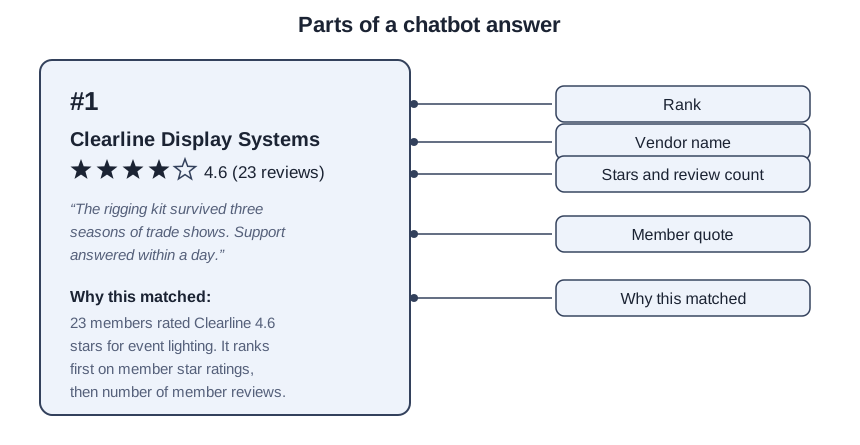
Paste your data into the chat widget. Open vendor-chatbot.html in a text editor, find the block marked PASTE YOUR DATA HERE, and paste in your JSON data file. Save, open the file in your browser, and ask “Who are the top companies in event lighting?” Check the answer card: rank, vendor name, stars and review count, one member quote, and why this matched. Answers rank by member star ratings, with number of member reviews breaking ties. Everything runs in your browser; no server is involved.
-
Put the chat widget on your website. Upload vendor-chatbot.html to your site and show it with an iframe, or paste it into your content system’s HTML block. The chatbot runs entirely in the visitor’s browser: no API keys, no server, and no member data leaves the page. Place it where buyers already look for vendors, such as your resources page.
-
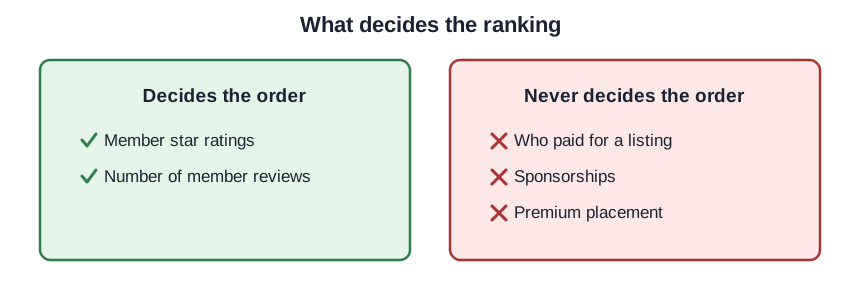
Sell the member feedback report, not placement. This is the revenue product, and it is the only thing vendors buy. A vendor purchases an aggregated report about their own company: member star ratings over time, the themes in their member quotes, and the questions buyers asked in their category. We think the report is the product vendors renew, because it answers the question every sponsor asks after the check clears: what did buyers actually say about us? Test pricing in the low hundreds of dollars per report and adjust after your first few sales. State the rule in your media kit: the ranking is decided by member star ratings and number of member reviews, and placement is never for sale.
- Run the five-question result check. Ask the five questions in the check section below. Anything that surprises you points back to the step named in its expected behavior.
What it looks like filled in
This is a teaching example, not a case study. The Harborview Association of Event Planners keeps a member vendor list of nine vendors across three categories. After its annual survey, three lighting vendors clear the five-review minimum: Clearline Display Systems at 4.6 stars from 23 reviews, Northgate Audio Rentals at 4.2 from 11, and Vellum Stage Lighting at 3.8 from 7. A visitor asks, “Who are the top companies in event lighting?” The chat widget answers Clearline first, then Northgate, then Vellum: member star ratings decide the order and number of member reviews breaks the tie. Each card shows the rank, the vendor name, the stars and review count, one member quote, and why this matched: “23 members rated Clearline 4.6 stars for event lighting.” A fourth vendor, sitting on three reviews, stays out of answers until its reviews arrive.
Check it: five questions, five right answers
Ask these in the chat widget and compare against the expected behavior.
-
“Who are the top companies in event lighting?” The top card is the vendor with the highest member star ratings in that category, ties broken by number of member reviews. Each card shows rank, vendor name, stars and review count, a member quote, and why this matched. Wrong order means the JSON data file came from the wrong spreadsheet.
-
“Where can I find registration software?” Every vendor named comes from your member vendor list, and each card explains why this matched. A name from outside the list means the data file was edited by hand.
-
“Who are the best caterers?” asked when no caterer has five reviews. The chat widget says it has no rated vendors in that category yet. An invented answer means the fallback text was changed.
-
Name a vendor with four reviews and ask for its category. It appears in no answer. The five-review minimum from step 2 is the gate; an early appearance means the wrong feedback spreadsheet.
-
Open vendor-chatbot.html and find the ranking code. The sort uses member star ratings, then number of member reviews, and the JSON data file holds no payment field anywhere. Any other sort key means the file was edited.
Four shortcuts that break the chatbot
Each of these feels like progress in the moment.
Selling the ranking. Sooner or later a vendor offers money to appear first. Take it and your answers become the buyer’s guide with a chat window on top. The first member who spots the difference tells the rest.
Launching with zero reviews. A chat widget with no member feedback has nothing to rank by, so it stays silent or fills the gap with polite guesses. Wait for the five-review minimum from step 2; a small live build beats a large empty one.
Letting the data go stale. A review from three years ago answering today’s buyer is a rumor, not guidance. Re-run the question set with your annual survey and rebuild the JSON data file each cycle.
Starting with too many categories. Ten categories with two reviews each produce ten shrugs. Launch with two or three categories where review depth is real.